In the article:
- Invoice Date Field Is Missing
- Unable to Backdate an Invoice
- Billing Is Stuck and Will Not Move to Review Charges
- Need to Change the Invoice Number
- Handle Trust Changes on invoices with multiple contacts
- Total Fees math error
- Object reference not set to an instance of an object
- Missing Last Name for Contact or Client
- Bad Client Address or Main Phone
- Could Not Create Electronic Billing File for Casefile
This guide covers common issues you may encounter when creating invoices and how to resolve them on your own.
Invoice Date Field Is Missing
- You cannot set or change the Invoice Date
- The system automatically uses today’s date
Why This Happens:
- You are a non-admin user and the firm setting forces invoices to always use the current date
How to Fix It:
An Admin user must:
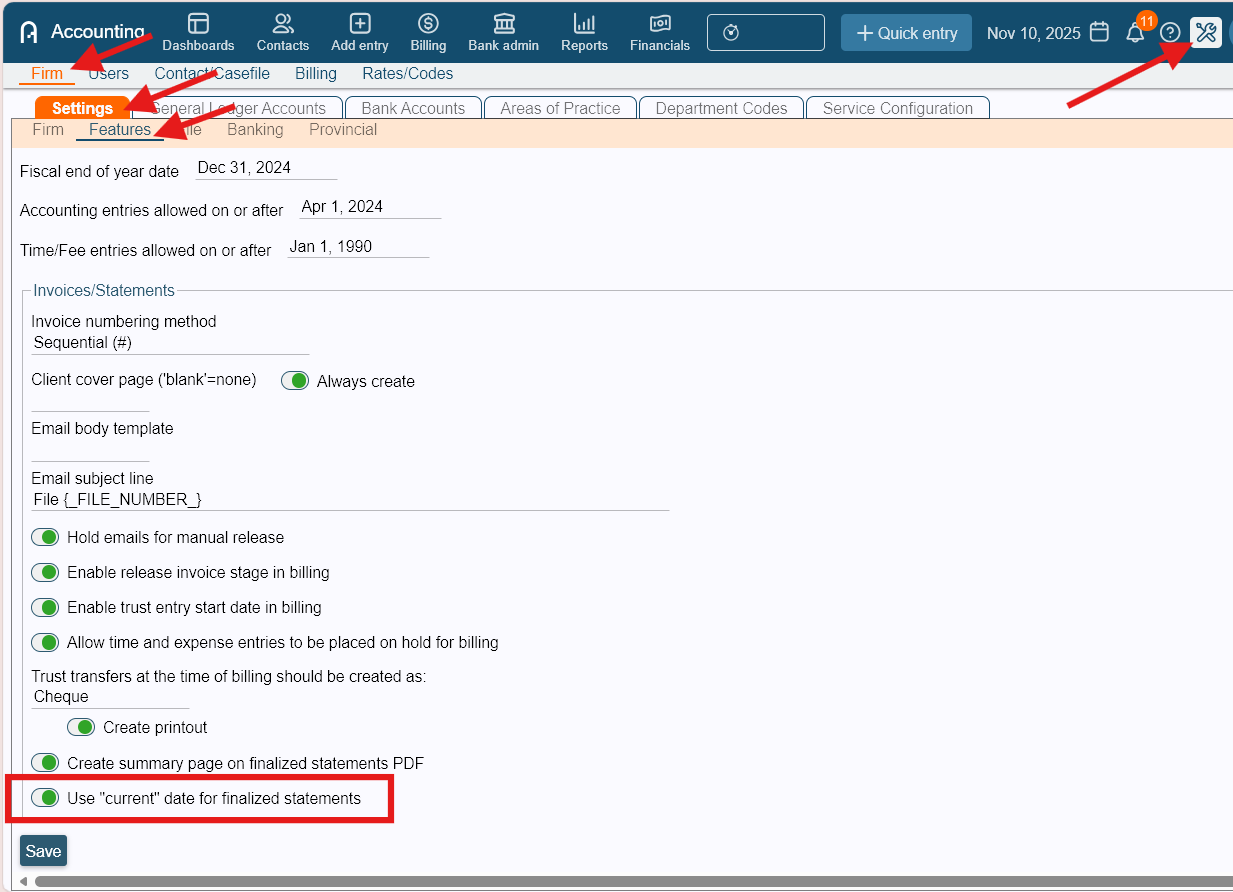
- Go to Admin > Firm > Settings > Features
- Find “Use ‘current’ date for finalized statements”
- Toggle this OFF. Once disabled, users can manually set the invoice date.
Unable to Backdate an Invoice
- The system does not allow you to select an earlier invoice date
Why This Happens
- There is already a newer invoice on the file
- The system does not allow invoices to be dated earlier than an existing invoice
How to Fix It
- Undo or reverse the most recent invoice(s) first
- Then re-request the invoice using the desired backdated date
Billing Is Stuck and Will Not Move to Review Charges
- Mass billing appears frozen
- Files do not move to Review Charges
Why This Happens
- The system is still processing a large billing request
- Files you are expecting to see do not meet the billing criteria
- There is a known outage, check here for status: https://actionstep-la.statuspage.io/
What to Do
- If it's a mass billing, and the number of files show in Review Charges is changing, wait for the process to complete
- Do not submit another billing request while one is already processing. There is no way to cancel or speed up a billing process once started.
- If you are billing by client, lawyer, or area of practice and some files are missing:
- Go to Billing > Request Invoice
- Set your billing parameters (e.g., Contact, Lawyer, Area of Practice)
- Set Action to Determine Billable Status
- Click Process
- Review the Billable Status Results, the system will show:
- Files ready to be billed
- Files not meeting billing criteria
- Excluded Files (click the button to view details)
Need to Change the Invoice Number
- You undid an invoice and want to reuse or change the invoice number
Requirements
- You must be an Admin user
How to Change the Invoice Number
- Go to Billing > Request Invoice or Review Charges
- Click the invoice number
- Enter the new invoice number when prompted.NOTE: The system will continue numbering from the new value. It will not revert to the old number automatically. Changing numbers may cause duplicates if invoices are backdated. Always note the original invoice number before changing it.
Handle Trust Changes on invoices with multiple contacts
- Error when applying trust at billing time
Why This Happens
- The file uses split billing
- Trust cannot be applied during billing for split-billed files
How to Fix It
If the file is split billing
- Finalize the invoice first
- Apply trust via transfer to the specific client's invoice after it was finalized.
If the file is not split billing
- Undo the draft invoice
- Go to File Manager
- Make a small change (e.g., add a dot to the description)
- Save the file
- Re-request the invoice. This refreshes the file in case it was previously split billed.
Total Fees math error
- The invoice total does not match expected amounts
Why This Happens
- Something changed on the file, but the system did not refresh
How to Fix It
- Undo the draft invoice
- Go to File Manager
- Make a small edit (e.g., add a dot in the description)
- Save the file
- Re-request the invoice. This forces the system to recalculate totals.
Object reference not set to an instance of an object
- A system error message during invoice creation
- Missing or incomplete eBilling (LEDES) details
How to Fix It
- Undo the draft invoice
- Go to File Manager > Electronic Billing
- Complete as many fields as possible (including optional ones)
- Save the file
- Re-request the invoice
Missing Last Name for Contact or Client
- Error related to missing contact information
- Often occurs with eBilling files
How to Fix It
- Undo the draft invoice
- Go to File Manager > Split / Advance Billing
- Check if a Contact for Billing Addressis set:
- If yes, open that contact in Contact Manager
- Ensure a Last Name is filled in
- Click Save.
- If no billing contact exists:
- Open the primary contact in Contact Manager
- Confirm the Last Name is populated
- Click Save.
- If yes, open that contact in Contact Manager
Bad Client Address or Main Phone
- Error related to address or phone details
- Common for eBilling invoices
How to Fix It
- Undo the draft invoice
- Go to File Manager > Split / Advance Billing
- If a Contact for Billing Addressexists:
- Open it in Contact Manager
- Confirm address, phone, and email are filled
- Click Save.
- If no Contact for Billing Addressexists:
- Check the primary contact under Contact Manager
- Ensure address, phone, and email are present
- Click Save.
- If a Contact for Billing Addressexists:
Could Not Create Electronic Billing File for Casefile
- eBilling file fails to generate
- Missing firm or user setup required for LEDES billing
How to Fix It
Firm Setup
- Go to Admin > Firm > Settings > Firm
- Confirm the Business Number is filled in
User Setup
- Go to Admin > Users > Users
- Open each timekeeper
- Confirm:
- First Name and Last Name are populated
- LEDES job title code is set
- All timekeepers on the invoice must be fully configured.
- Click Save.
Was this article helpful?
That’s Great!
Thank you for your feedback
Sorry! We couldn't be helpful
Thank you for your feedback
Feedback sent
We appreciate your effort and will try to fix the article