Billing entries are created so they can be reviewed and turned into invoices. This guide explains how to generate, review, and finalize invoices, as well as common options and workarounds.
- Request Invoice
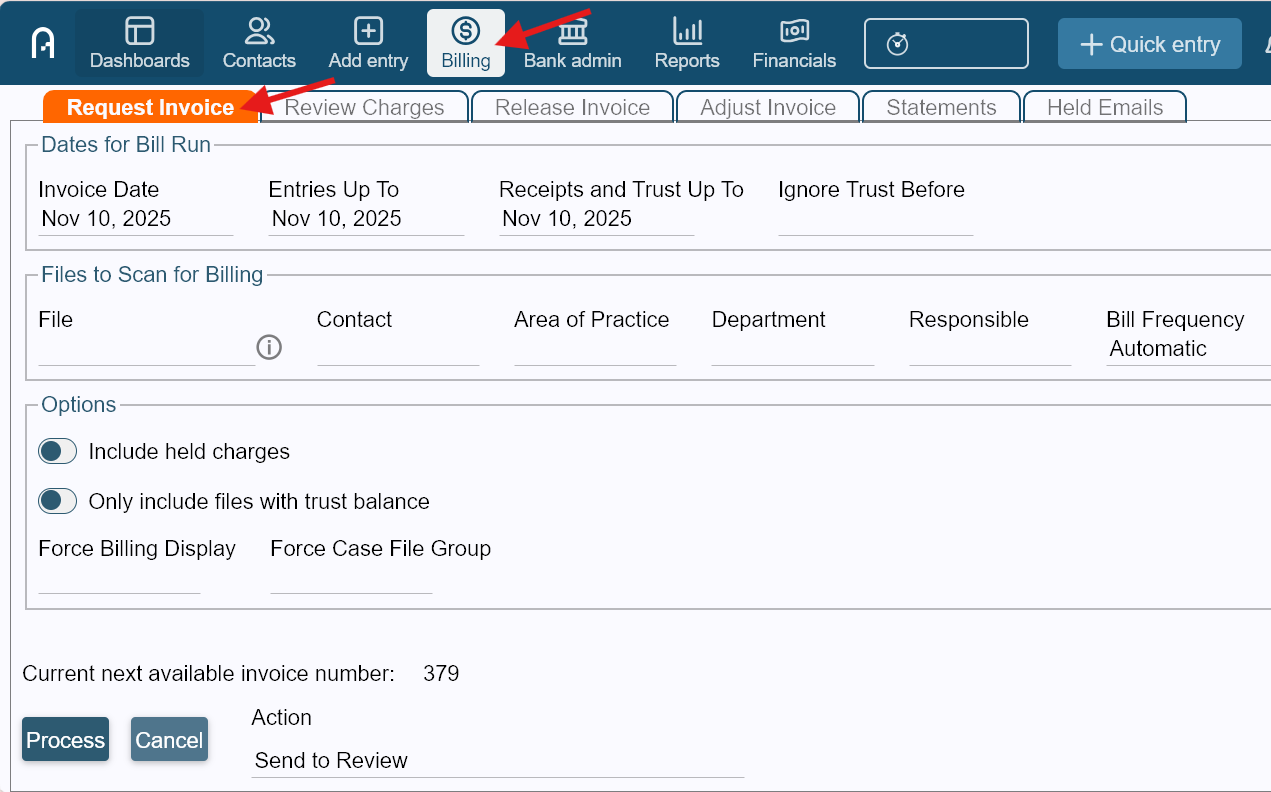
- Request the invoice by going to Billing > Request Invoice tab.
- Set invoice parameters:
- Invoice Date - it defaults to today’s date but can be changed if you need a different invoice date.
- Entries Up To Date - it limits which billing entries (fees and disbursements) are included.
- Receipts and Trust Up To Date - it limits which payments are included and will appear on the invoice.NOTE: Entries Up To Date and Receipts and Trust Up To Date must be on or before the Invoice Date.
- Select Files to Bill. In Files to Scan for Billing, select:
- A specific file, or
- Multiple files, depending on what you want to invoice using available filters.
- (Optional) Use the Options section to further narrow which files are included.
- Set Action:
- Send to Review - Recommended (allows you to review charges first)
- Finalize - Only available if billing a single file and no review is needed.
- Click Process. The requested files move to the Review Charges tab.
- Request the invoice by going to Billing > Request Invoice tab.
- Review Charges
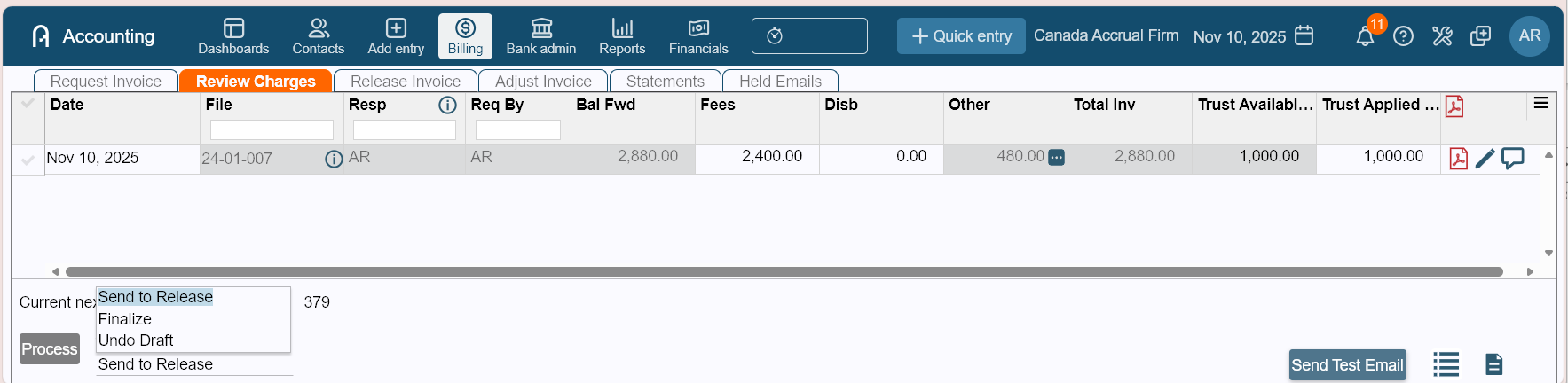
- Go to the Review Charges tab to review and adjust invoice details before finalizing.
From here, you can review and edit the following:- Invoice Date - View or change the invoice date if needed
- Fees and Disbursements (Disb) - View to change amounts directly on the draft invoiceNOTE: Fees adjusted in Review Charges will be allocated based on the settings of the file's Billing Group. To control the allocation of the fee adjustment, please finalize the invoice before adjusting Fee Allocations in Billing > Adjust Invoice.
- Taxes - Displayed under Other. Taxes are automatically calculated based on taxable charges and cannot be manually changed, only through Adjust Invoice after it was finalized.
- Invoice Total - Shown under Total Inv
- Optional: Paying Charges from Trust at Billing
- Use Trust Applied to pay new charges only, this does not apply to balance forward. You can do a transfer entry outside billing to pay outstanding balances.
- The Trust Available column shows only the amount eligible to apply at billing time, not the full trust balance.
- Not applicable for eBilling or split billing files.
- Helpful Tools in Review Charges
- PDF icon - Generate a draft/prebill
- Pen icon - Edit or select charges
- Speech bubble icon - Add billing notes
- More icon (☰) - Show or hide columns
- Go to the Review Charges tab to review and adjust invoice details before finalizing.
- Finalize the Invoice
- Check the box beside the draft invoice you want to finalize
- Set Action to Finalize.NOTE: Many firms restrict non-admin or non-billing users from finalizing invoices. In these cases, the Send to Release option is enabled, which sends the invoice to an approver for review. The invoice can only be finalized once it has been approved.
- Click Process. The invoice PDF downloads and the finalized invoice appear in:
- Client Ledger
- Billing reports
- Financial reports
Was this article helpful?
That’s Great!
Thank you for your feedback
Sorry! We couldn't be helpful
Thank you for your feedback
Feedback sent
We appreciate your effort and will try to fix the article