In this article:
TABLE OF CONTENTS
- Writing Off/Down/Up an Invoice
- Adjusting Fees Allocation
- Recreate an Adjusted Invoice
- Adjusting Invoices using Provisional Write Offs (PWO)
- Adjusting an Invoice at the time of billing
At times you may need to adjust a finalized invoice to perform write-ups, write-downs, write-offs, provisional write-offs, and change fee allocations.
Writing Off/Down/Up an Invoice
- Go to Billing > Adjust Invoice
- Select the file under File field, it will also auto-populate the contact.
- Choose the invoice to adjust from the Invoice field to show the details.
- Enter the adjustment date under Date field.
- (Optional) Enter notes under Memo.
- Change fees and expenses by entering new amounts. The adjustment screen presents five columns.
- Existing: Displays the current invoice values.
- New: Allows you to enter the desired new amounts for fees, expenses. The "Change" and "Balance" fields update automatically.
- Change: Enables adjustments by entering the amount of change (positive or negative). The "NEW" field will adjust accordingly.
- GL Acct: (Required for expense adjustments) Specifies the general ledger account to which the adjustment will be posted.
- Task: (Required for all adjustments) Associates a task code with the modification.
- Click Save.
EXAMPLE:
This invoice was partially paid and you want to write off the balance. 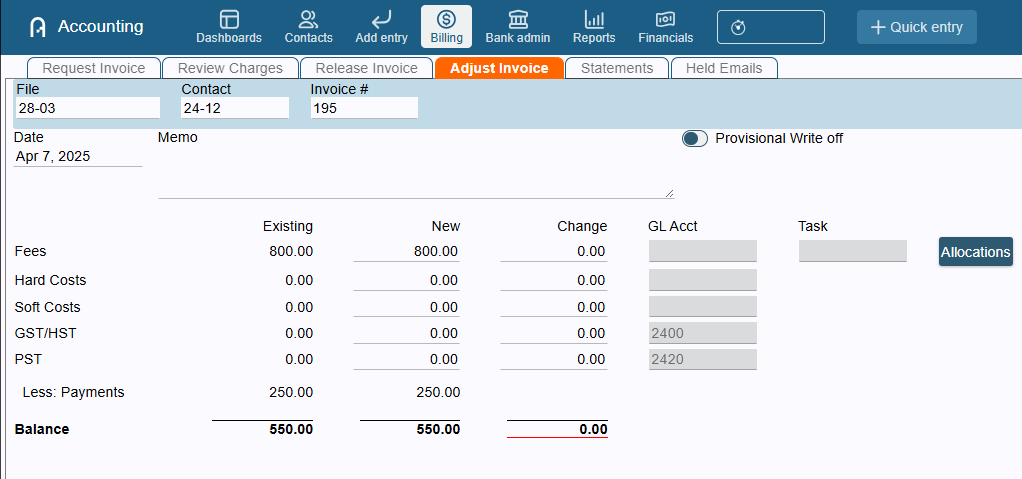
To do this, you can use the Existing Balance amount and put it under Change as a negative value to zero it out.
The system prevents negative balances. If an adjustment results in a negative balance, the Save button will be disabled.
Adjusting Fees Allocation
There are times when adjusting a fee may involve changing Fee earners fee credit. This function is only available post-billing. Please Finalize the invoice to proceed.
- Go to Billing > Adjust Invoice.
- Search for the file, contact and invoice number you want to change the fee allocation.
- Click the Allocations button.
- Make the necessary fee allocation adjustment.
- Click Ok.
- Click Save.
EXAMPLE: By default, when writing off fees, it will be allocation to originating working lawyers just like this - 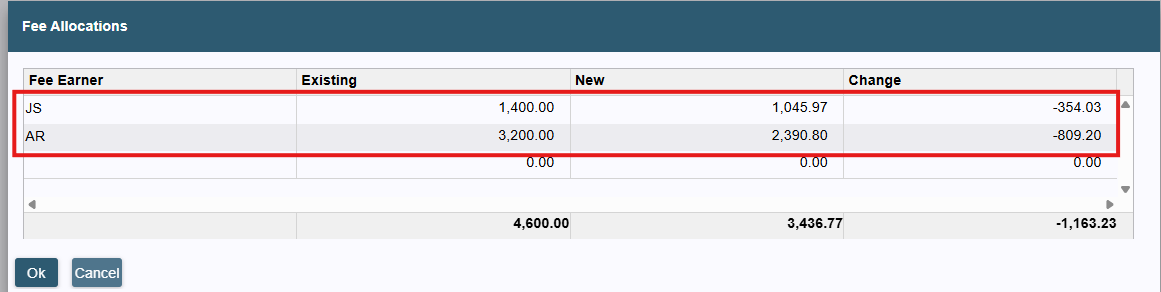 But if you need all of it to be allocated to one particular lawyer, you can change it here.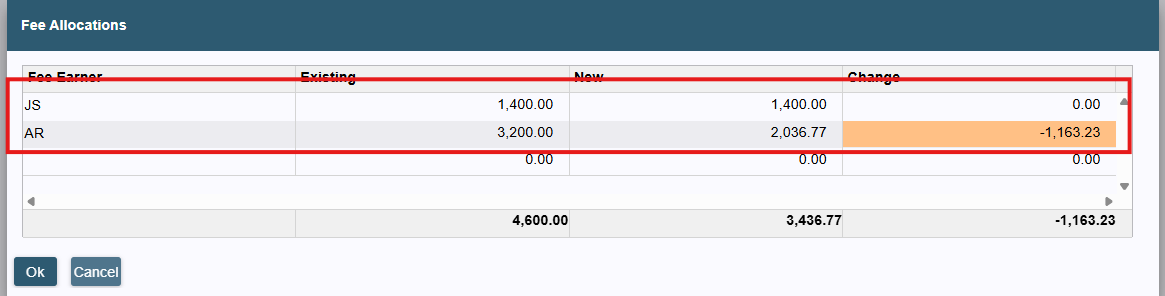
Recreate an Adjusted Invoice
When you adjusted an invoice, you can recreate the invoice to reflect the changes made, to do this, follow these steps:
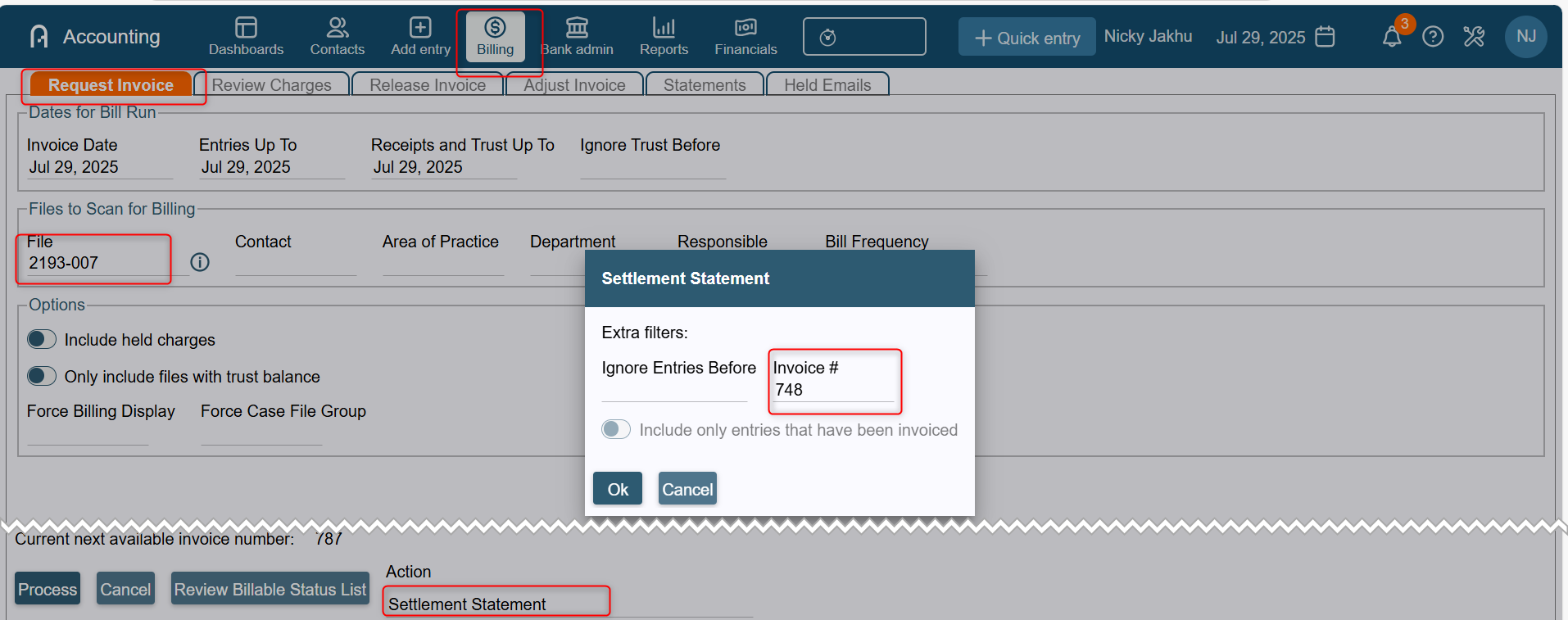
- Go to the Billing > Request Invoice tab.
- Enter the File or Contact.
- Select Settlement Statement under Action.
- Click Process to open the Settlement Statement pop-up window.
- Type the invoice number you want to reprint under the Invoice # field.
- Click Ok.
 NOTE: Please be aware that recreating the invoice does not update the invoice image saved on the ledger. The recreated invoice is not saved elsewhere within the system. It is a temporary recreation for viewing or printing. Balance forward (if any) will not show either.
Adjusting Invoices using Provisional Write Offs (PWO)
Some firms use provisional write offs to temporarily write off invoices for the purposes of submitting taxes. These invoices would subsequently be written up with a reversal to the PWO before taking payment toward them.
Follow these steps to issue the provisional write off:
- Go to Billing > Adjust Invoice
- Select the file under File field, it will also auto-populate the contact.
- Choose the invoice to adjust from the Invoice field to show the details.
- Toggle on provisional write off
- Fill in the red-underlined fields
- GL Acct: (Required for expense adjustments) Specifies the general ledger account to which the adjustment will be posted.
- Task: (Required for all adjustments) Associates a task code with the modification.
- Click Save
To reverse the write off, to allow for payment:
- Go to Billing > Adjust Invoice
- Enter the Invoice number in the invoice field
- The Provisional Write off pop up will automatically pop up, set the date and memo (optional) and click Ok
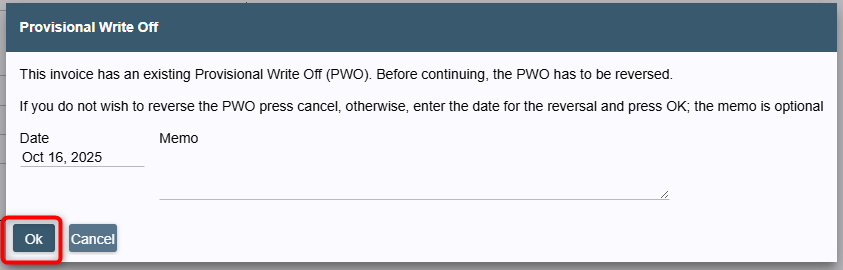
- The invoice details will populate to the screen, and will now be available for payment or permanent write off
Adjusting an Invoice at the time of billing
Invoices can be adjusted before finalizing, in the Review Charges tab, with the finalized invoice reflecting the adjustments that have been made. Adjustments at the time of billing can be made to both Fees or Disbursements.
Follow these steps to adjust fees at the time of billing:
- Go to Billing > Review Charges and locate the invoice draft you would like to adjust
- Click in either the Fees cell of the invoice, manually change the amount in the cell to reflect the new total
- A Fee Adjustment pop up will appear, fill out the required task code. If you would like an explanation to show on the finalized invoice, type it in the Explanation field
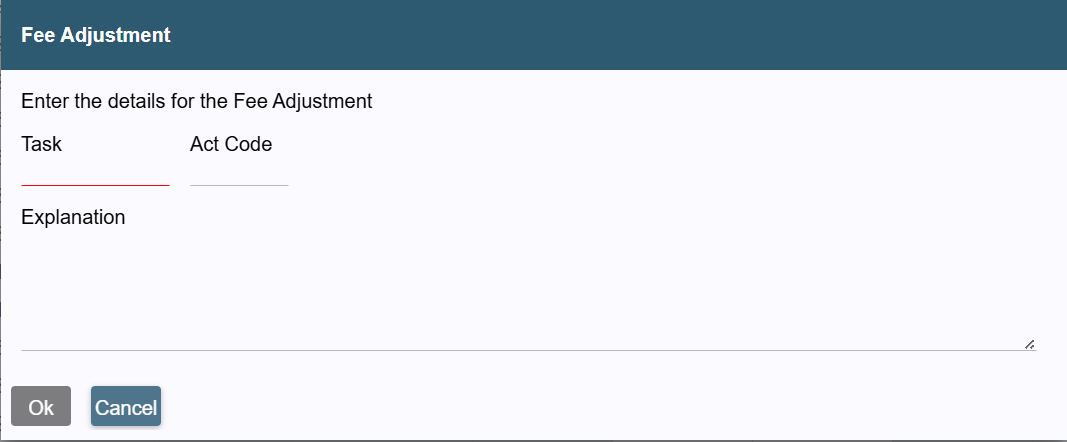
- Click OK
Follow these steps to adjust Disbursements at the time of billing:
- Go to Billing > Review Charges and locate the invoice draft you would like to adjust
- Click in the Disb cell of the invoice, manually change the amount in the cell to reflect the new total
- A Quick Entry > Expense pop up will appear, fill out the required GL Acct. If you would like an explanation to show on the finalized invoice, type it in the Explanation field
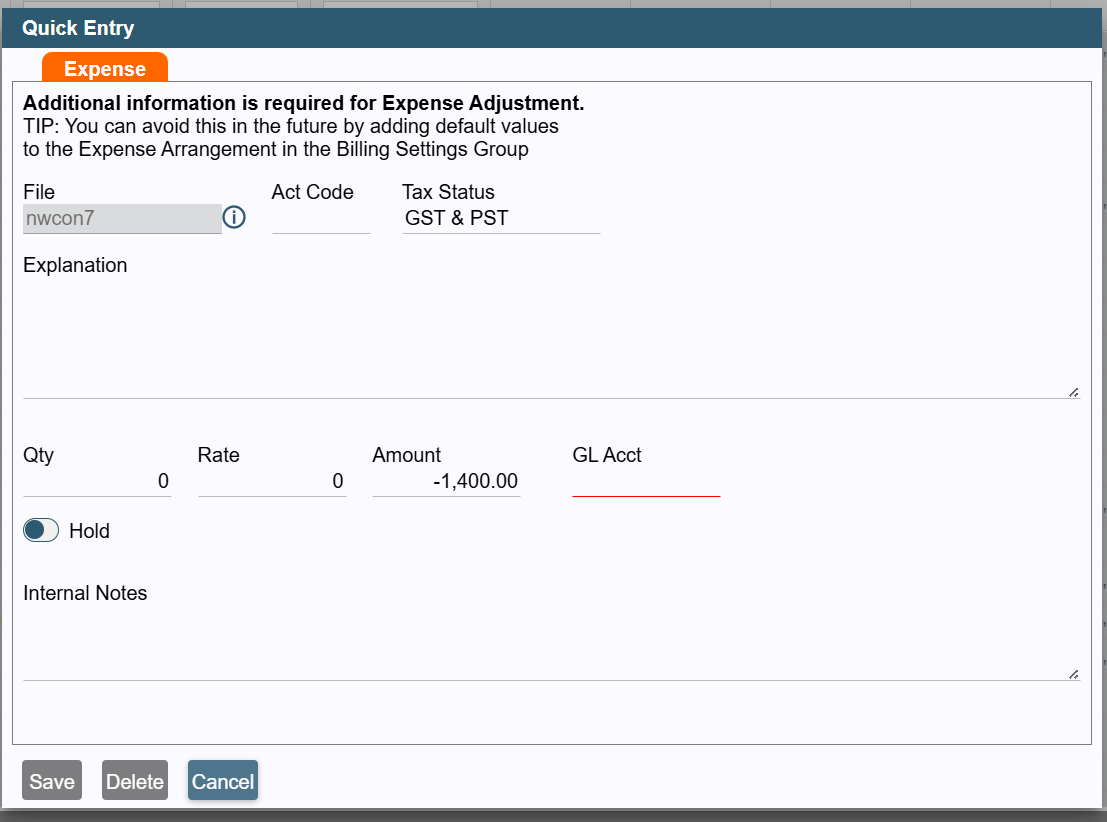
- Click OK
Was this article helpful?
That’s Great!
Thank you for your feedback
Sorry! We couldn't be helpful
Thank you for your feedback
Feedback sent
We appreciate your effort and will try to fix the article