In this article:
This guide provides the steps needed to create an account, submit support requests, and view or manage your tickets with the Actionstep Legal Accounting (Soluno) Support Team.
Creating a Support Portal Account
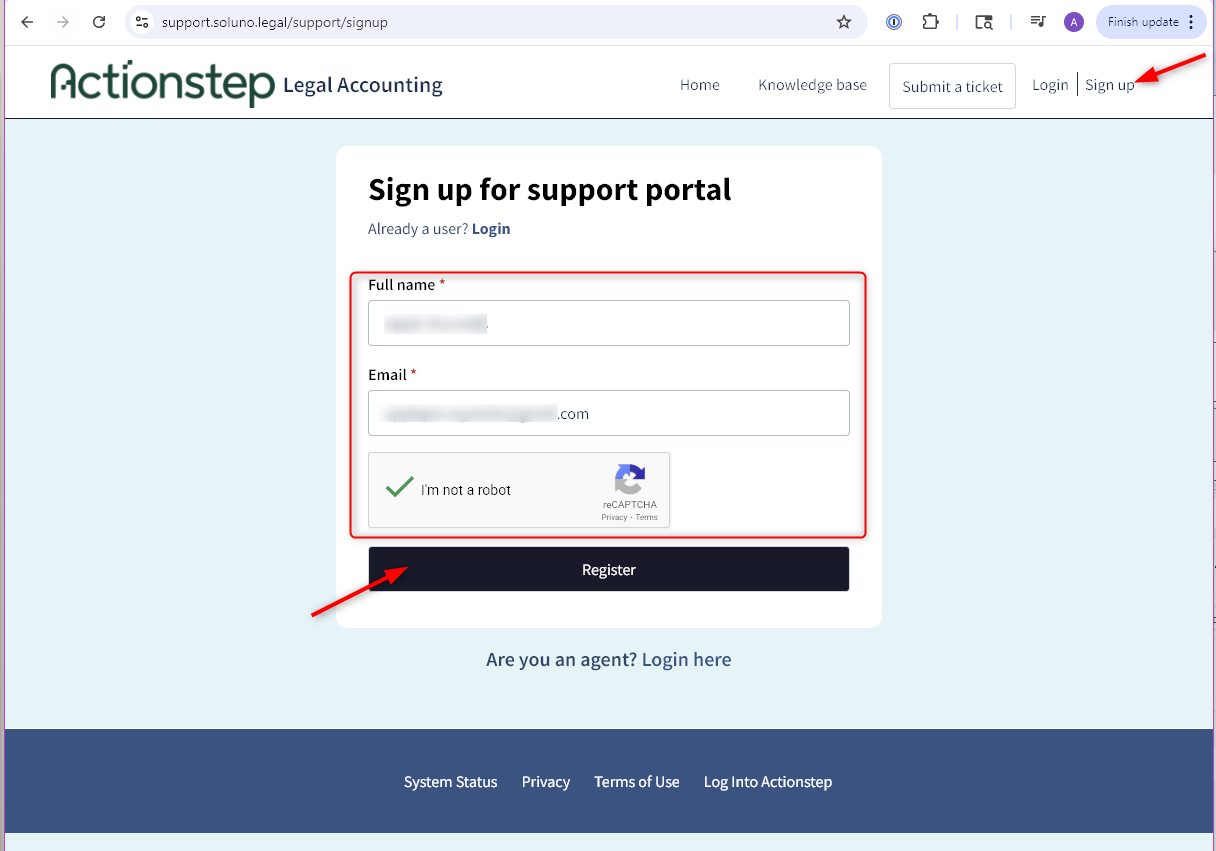
- Go to https://support.soluno.legal and click Sign Up.
- Enter your name and the email address you use for Actionstep Legal Accounting (Soluno).
- Complete the captcha and click Register.
- A banner will confirm an activation email has been sent.
- Check your inbox for an email from Soluno Support (support@soluno.legal) and click the activation link.
- You will be redirected to set your password.
- Click Activate and Login.
- You should now see the Support Portal homepage.
Submitting a Ticket
If you have reviewed the support documents and still need assistance, you can submit a support ticket through the portal.
- From the portal, click Submit a Ticket.NOTE: To view and track all your submitted tickets later, you must create a Support Portal account.
- Fill in all required fields and include as much detail as possible, such as:
- A screen recording of the issue
- Relevant reports
- Screenshots or error messages
- Click Submit.
Accessing Support Tickets
Once you are logged in to the Support Portal, you can view and manage all your submitted tickets.
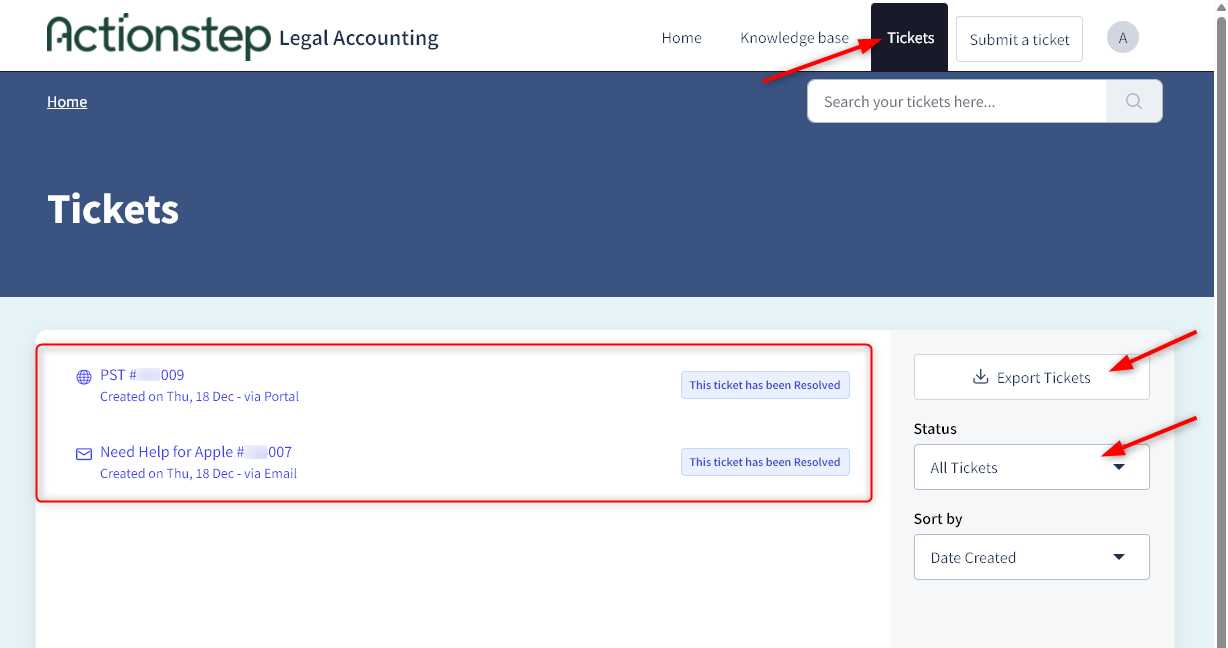
- From the portal, click Tickets.
- You will see a list of all your tickets.NOTE: Use the Status filter to view tickets based on their current status.
From this page, you can:
- View the ticket status and details
- Reply or add additional information
- Add CC recipients
- Close the ticket if the issue is resolved
Was this article helpful?
That’s Great!
Thank you for your feedback
Sorry! We couldn't be helpful
Thank you for your feedback
Feedback sent
We appreciate your effort and will try to fix the article