In this article:
- New TAF Rule
- Configuring the Trust Administration Fee
- Charging the Trust Administration Fee
- Managing TAF Overrides and Exemptions
- How to find the files that meet the new rule for charging TAF?
The Trust Administration Fee (TAF) is a regulatory fee associated with holding client funds in trust.
New TAF Rule
As of January 1, 2026, the LSBC has adopted a new, threshold-based approach to assessing the TAF. This change significantly alters when, how, and to which matters the TAF applies.
The TAF is now assessed only when a specific client matter exceeds a trust deposit threshold. TAF is payable once per client file when more than $10,000 in trust funds is received on or after January 1, 2026.
Configuring the Trust Administration Fee
- Go to Admin > Firm > Settings > Provincial tab.
- Click the down arrow to expand British Columbia.
- Toggle on the Trust Administration Fee to activate it.
- Set the Trust Administration Fee (TAF) amount.
- Assign the liability account for TAF tracking.
- (Optional) Firm Filing ID if required for regulatory reporting.
- (Optional) Create and assign an activity code if the TAF should appear as a distinct billing item.
- Set whether TAF is a Firm Expense or Client Charge:
- If the firm passes the TAF to the client, leave Firm Expense toggled off
- If the firm absorbs the TAF as a firm cost:
- Toggle on Firm Expense.
- Assign the GL account to charge the TAF against.
- Click Save to complete setup.
Charging the Trust Administration Fee
There are two ways to enter TAF, both are displayed and tracked the same.
Option 1: Expense
- Go to Add Entry > Expenses tab.
- Enter the file.
- Toggle on TAF button.
- Click Save.

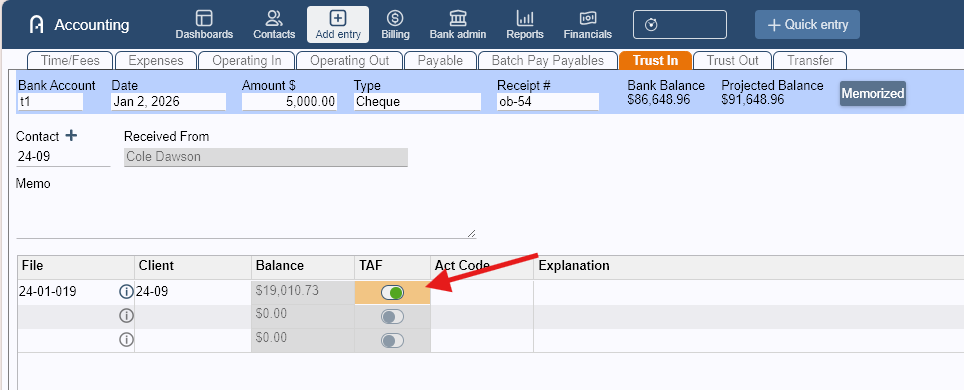
Option 2: Trust In (at the time of receiving trust fund)
- Go to Add Entry > Trust In.
- Enter the receipt details of the client file.
- Toggle on TAF button.
- Click Save.
Managing TAF Overrides and Exemptions
Once charged with TAF, the file will automatically be marked as TAF applied. By default, the system prevents adding another TAF to the same file but can be overridden if needed.
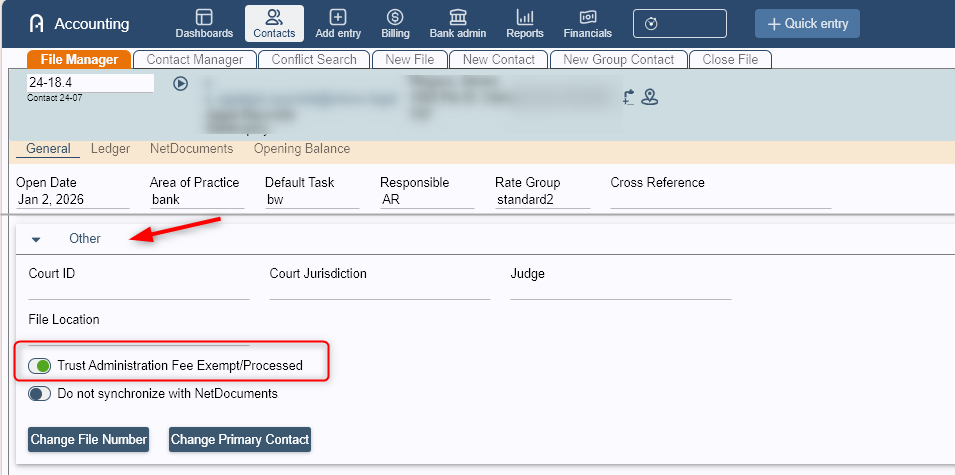
- Go to Contacts >File Manager tab.
- Load the file.
- Scroll to Other section.
- Review the TAF status:
- If Trust Administration Fee Exempt/Processed option is toggled on, TAF has been processed for the file, or it's TAF exempt.
- If Trust Administration Fee Exempt/Processed option is toggled off, TAF hasn't been processed yet and can still be charged.
How to find the files that meet the new rule for charging TAF?
As of writing, our developers are currently working on a more permanent solution to improve how Legal Accounting can help firms manage TAF but, in the meantime, you can get the list of files that can be charged with TAF in accordance to the new TAF rule.
- Go to Reports > Contacts > Ledger tab.
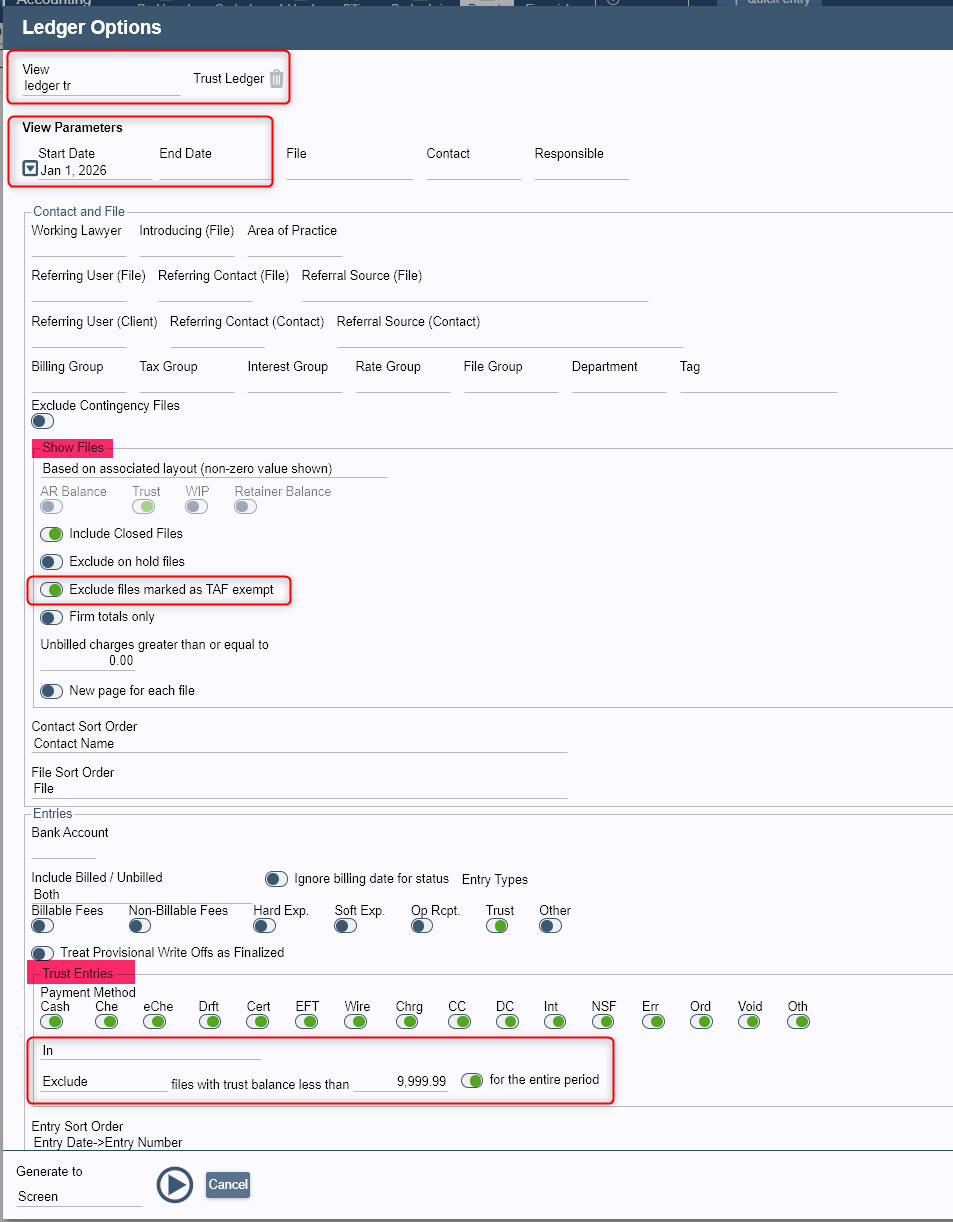
- Click the dropdown arrow to open the Ledger Options window.
- Select ledger tr (Trust Ledger) under View.
- In View Parameters:
- Set the Start Date to January 1, 2026.
- Leave the End Date blank.
- In the Show Files section:
- Toggle ON Exclude files marked as TAF Exempt. This ensures the report only shows files where a TAF can be applied.
- In the Trust Entries section:
- Select "In" only. This limits the report to trust deposits only.
- Select Exclude for "files with a trust balance less than" option
- Enter 9999.99 for the amount
- Toggle ON Entire Period
- Leave everything else as is.
- Click Play / Run to generate the report. The report will now show only the files that meet the TAF requirements.
Was this article helpful?
That’s Great!
Thank you for your feedback
Sorry! We couldn't be helpful
Thank you for your feedback
Feedback sent
We appreciate your effort and will try to fix the article