In this article:
- Overview
- Configuring 2FA During Login
- Configuring 2FA After Login (User Profile Settings)
- Forcing 2FA for All Users
- Resetting A User’s 2FA
- Disabling A User's 2FA
Overview
This guide gives you all the steps needed to correctly configure, verify, and use Legal Accounting 2FA. Legal Accounting supports several 2FA methods:
- Email verification
- SMS/Text verification
- Authenticator App (Google Authenticator or Microsoft Authenticator)
Configuring 2FA During Login
If the firm have enabled mandatory 2FA, users will see a 2FA prompt upon login. They need to verify and validate their email or mobile number.
To do this:
- Click Send Email or Send SMS (Text).
- Enter the validation code sent to you.
- Click Validate.
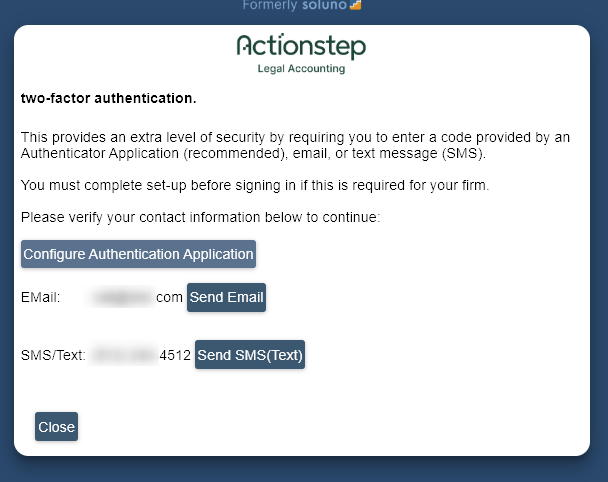
Optional: Users can also use an Authenticator app, but they must first verify either their email or mobile number as mentioned above.
To use an Authenticator App, please follow these steps:
- Click Configure Authentication Application.
- Scan the QR Code or use the Manual Code if needed
- On your mobile device:
- Open or install Google Authenticator or Microsoft Authenticator.
- Choose Add Account or click option to scan the QR Code
- Scan the QR code OR manually enter the setup code.
- Once the app generates a 6-digit code:
- Enter that code into Legal Accounting’s Verify field.
- Click Verify.
- Click Ok. Your authentication app is now linked.
Configuring 2FA After Login (User Profile Settings)
Once logged in, you can access all 2FA settings through your User Profile.
- Click the User/Profile Icon.
- Click Manage Profile
- Go to Contact Settings and make sure you have validated either email or phone, if not, click Validate. Both may be validated for backup purposes.
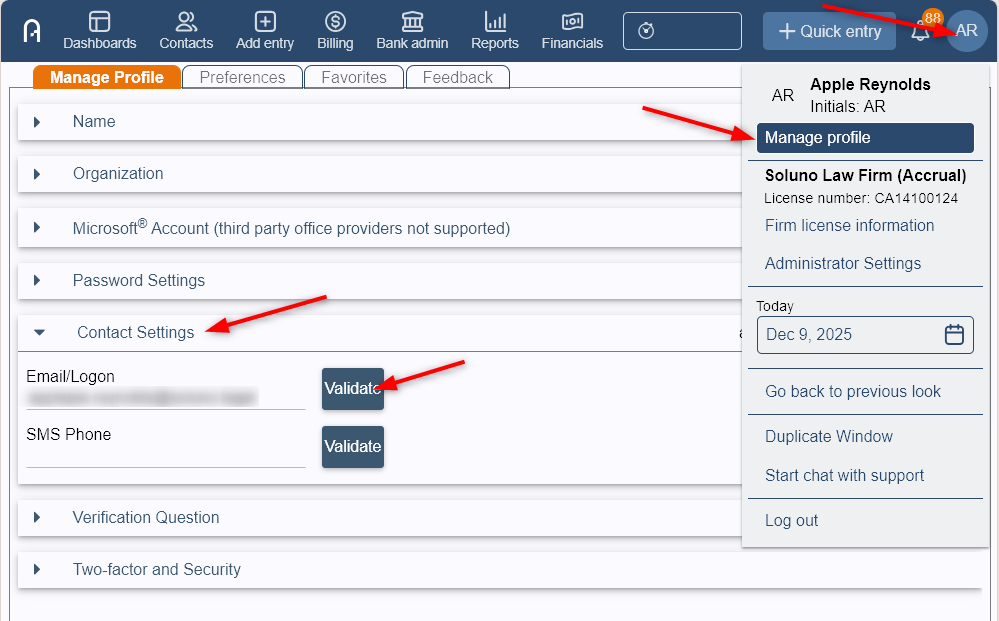
- Go to Two-factor and Security tab.
If you just want to use Email/SMS/Text, follow these steps:- Toggle On Use two-factor authentication when applicable.
- Click Save.
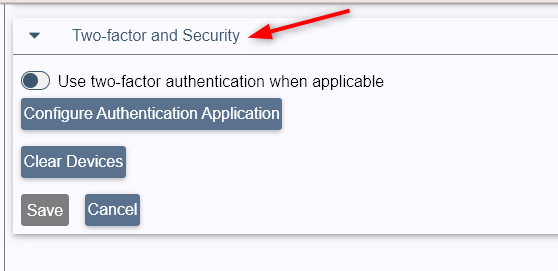
To use an Authenticator App
- Click Configure Authentication Application.
- Scan the QR Code or use the Manual Code if needed
- On your mobile device:
- Open or install Google Authenticator or Microsoft Authenticator.
- Choose Add Account or click option to scan the QR Code
- Scan the QR code OR manually enter the setup code.
- Once the app generates a 6-digit code
- Enter that code into Legal Accounting’s Verify field.
- Click Verify.
- Click Ok. Your authentication app is now linked.
- Click Save.
Forcing 2FA for All Users
- Go to Admin > Users > Security tab.
- Toggle On Force all connecting users to use two-factor authenticationNOTE: To disable 2FA requirement for the firm, toggle off Force all connecting users to use two-factor authentication. Each user will still need to go to their profile settings to disable 2FA.
Resetting A User’s 2FA
- Go to Admin > Users > Users tab.
- Locate the user.
- Toggle On Force password change at next sign-on.
- Click Save.
- Toggle Off Force password change at next sign-on.
- Click Save.
- The user should now be able to log in without 2FA and can set up their 2FA again.
Disabling A User's 2FA
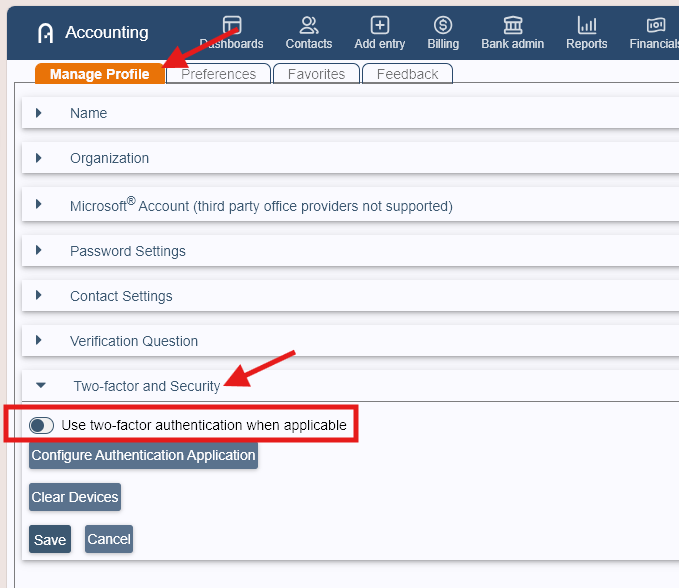
- Click the User/Profile Icon.
- Click Manage Profile
- Go to Two-factor and Security tab.
- Toggle Off Use two-factor authentication when applicable
- Optional: Click Clear Devices to unlink your account to your existing authenticator app.
Was this article helpful?
That’s Great!
Thank you for your feedback
Sorry! We couldn't be helpful
Thank you for your feedback
Feedback sent
We appreciate your effort and will try to fix the article