Whether you are just now starting to use Legal Accounting or you’re moving from another system and already have existing balances, the GL Opening Balance screen lets you enter those amounts, so your accounting stays accurate from day one.
- Go to Financials > GL Opening Balance
- Enter the GL Account and corresponding debit or credit amount.
- Once the Diff shows 0.00, click Save
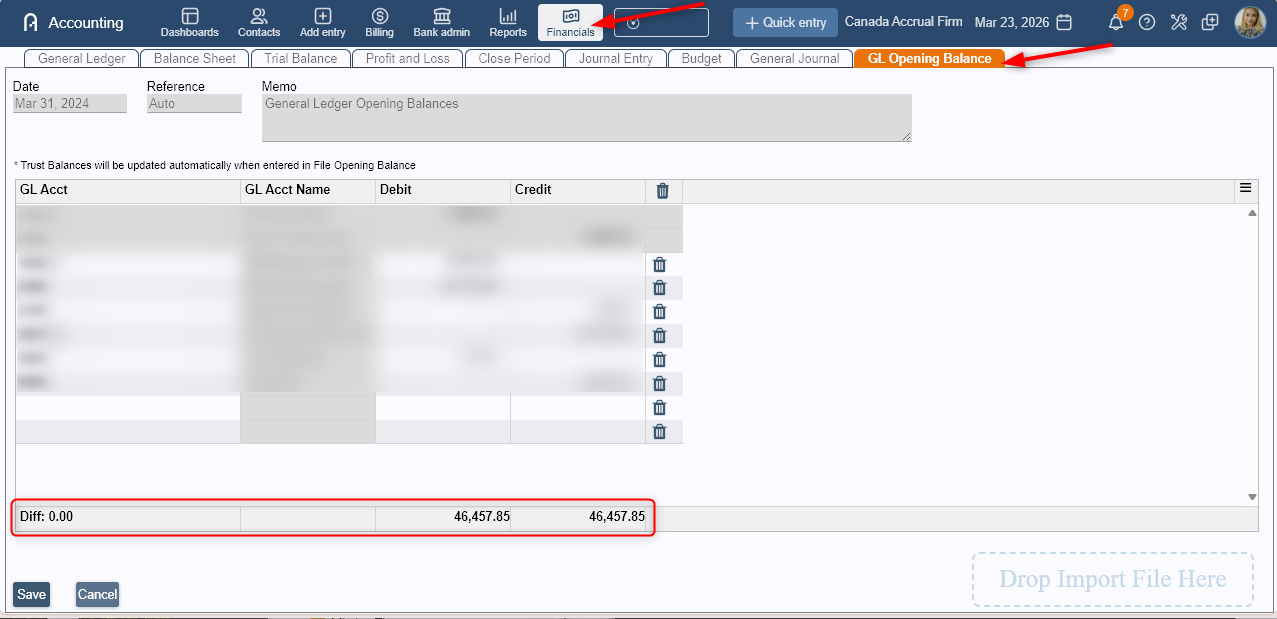 NOTE: If you have a .CSV file of GL Opening Balances, you may drop import file into Legal Accounting.
Why can’t I see GL Opening Balance?
If the option is missing, it usually means that a GL period has already been closed. You’ll need to reopen the closed period first then you’ll be able to access and edit GL Opening Balances again, see Re-Opening a Closed Period.
Important Things to Remember
- You cannot use the same GL account more than once
- Total Debits must equal Total Credits (Diff = 0.00)
- You cannot edit balances if a period is closed
- Our Legal Accounting team can help with system guidance, but we cannot advise which GL accounts to use. Please consult your accountant or bookkeeper for that.
Was this article helpful?
That’s Great!
Thank you for your feedback
Sorry! We couldn't be helpful
Thank you for your feedback
Feedback sent
We appreciate your effort and will try to fix the article