This guide helps you reconcile your accounts receivables report and Receivables General Ledger (1200) account. If your account balances aren't matching up, try these steps to troubleshoot.
Finding the Difference
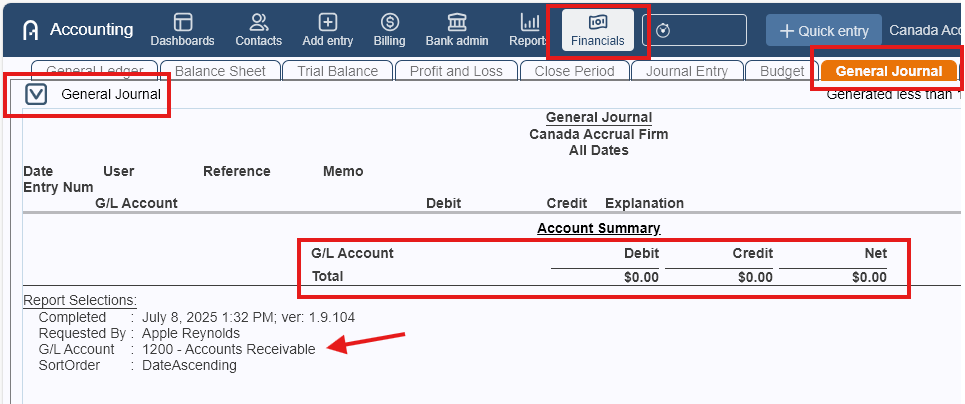
- Check for any Journal entries.
- Go to Financials > General Journal.
- Click the dropdown arrow to select the view, general.
- Leave the dates blank.
- Enter the receivables GL account under GL Acct field.
- If any, add up all values posted to that GL account and see if that is the difference. Please consult with your accountant on how to address it.NOTE: Journal entries posted on controlled accounts only affect the GL and not the sub-ledgers or reports.
Check if the GL Opening Balances were entered correctly and agree with the AR report.
Go to Financials > GL Opening Balance (click Cancel first to refresh the balances). Note the date and balance for the account.
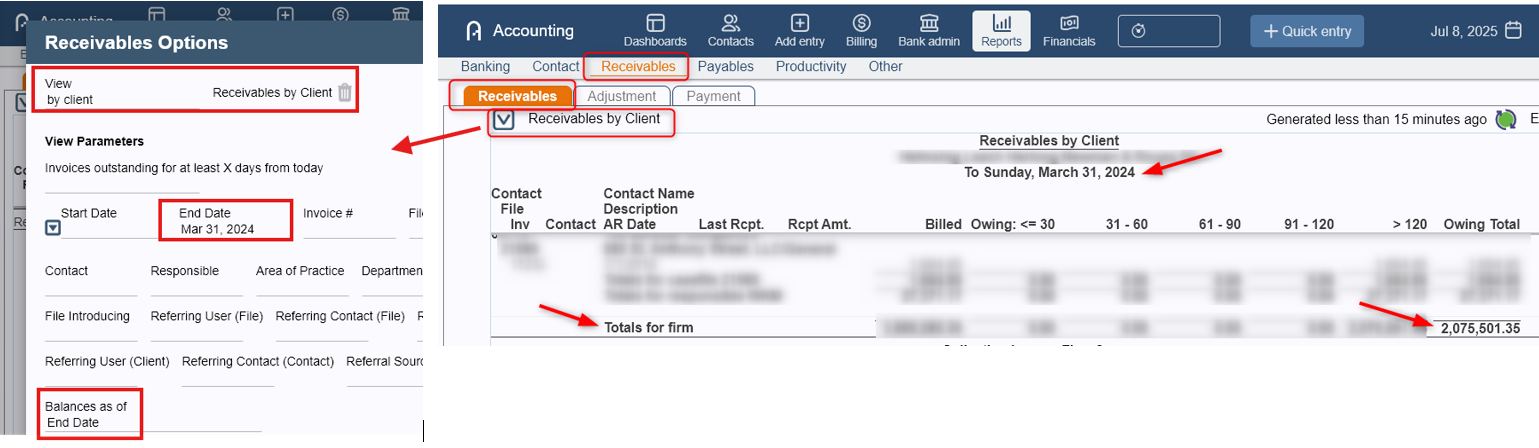
Go to Reports > Receivables > Receivables > by Client (Receivables by Client), run it as of the GL opening balance date.
Confirm that the balances match. If not, please contact us and provide as much details as possible.
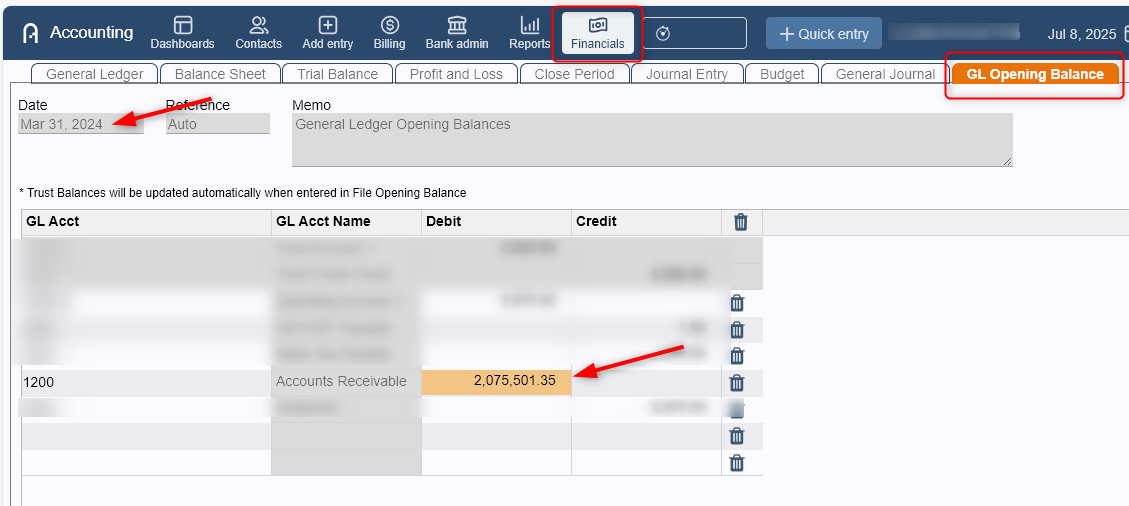
 NOTE: If the months have been closed, the GL Opening Balance tab will disappear. Run a General Ledger report as of Legal Accounting start date, the opening balance on that report will show what was entered as GL Opening Balance.
- Find the first date of the imbalance.
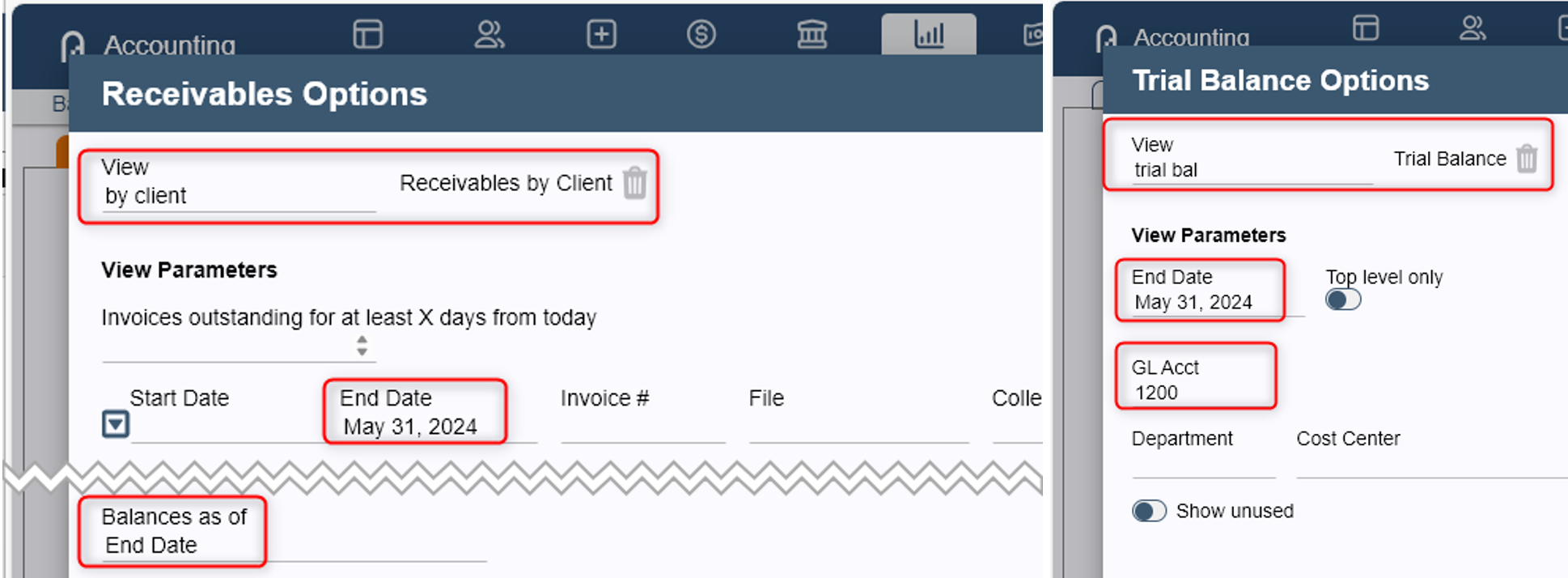
- Go to Reports > Receivables > Receivables > by Client (Receivables by Client).
- Leave the Start Date blank and set the End Date, start with last year or last month.
- Go to Financials > Trial Balance.
- Select the Receivables GL and set the same End Date as the AR report.NOTE: Run the reports using the binary search approach; divide the period to quickly narrow down the date range to find out the first date of the imbalance. e.g. prior year, prior month, prior week then on each day.Report Parameters:
Last Date they balanced: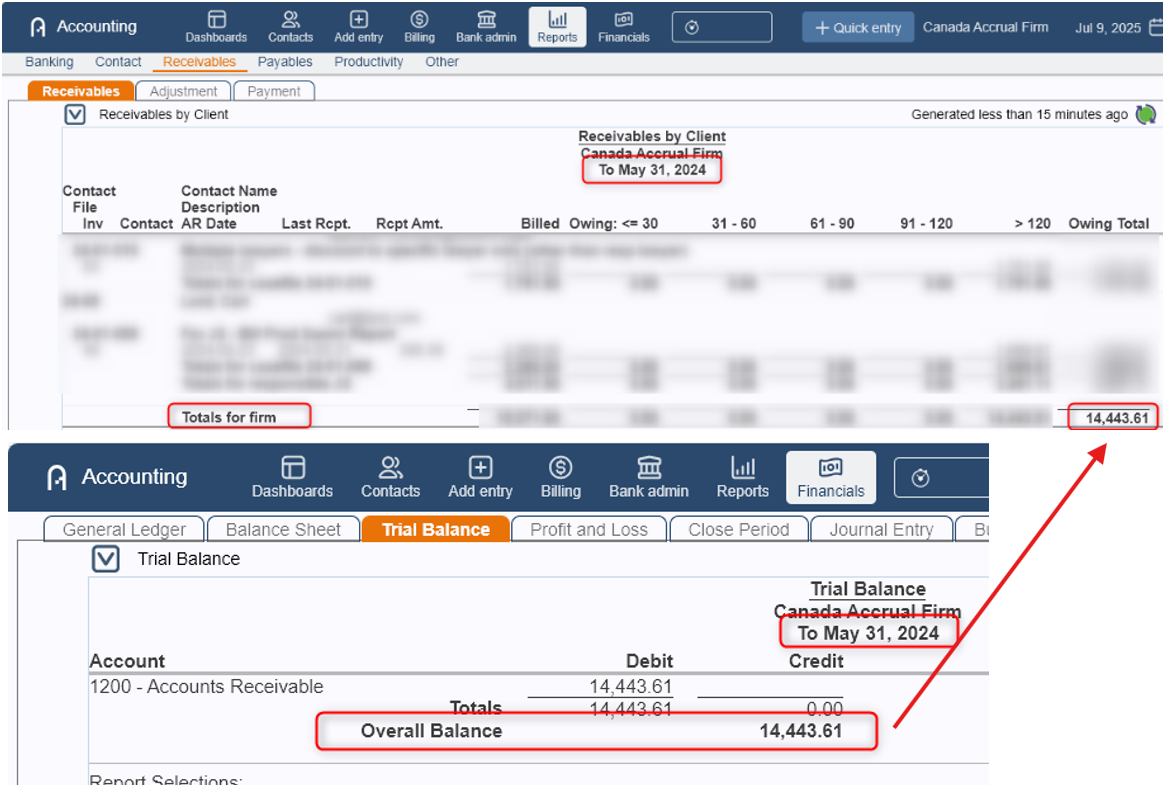
First Date of the imbalance: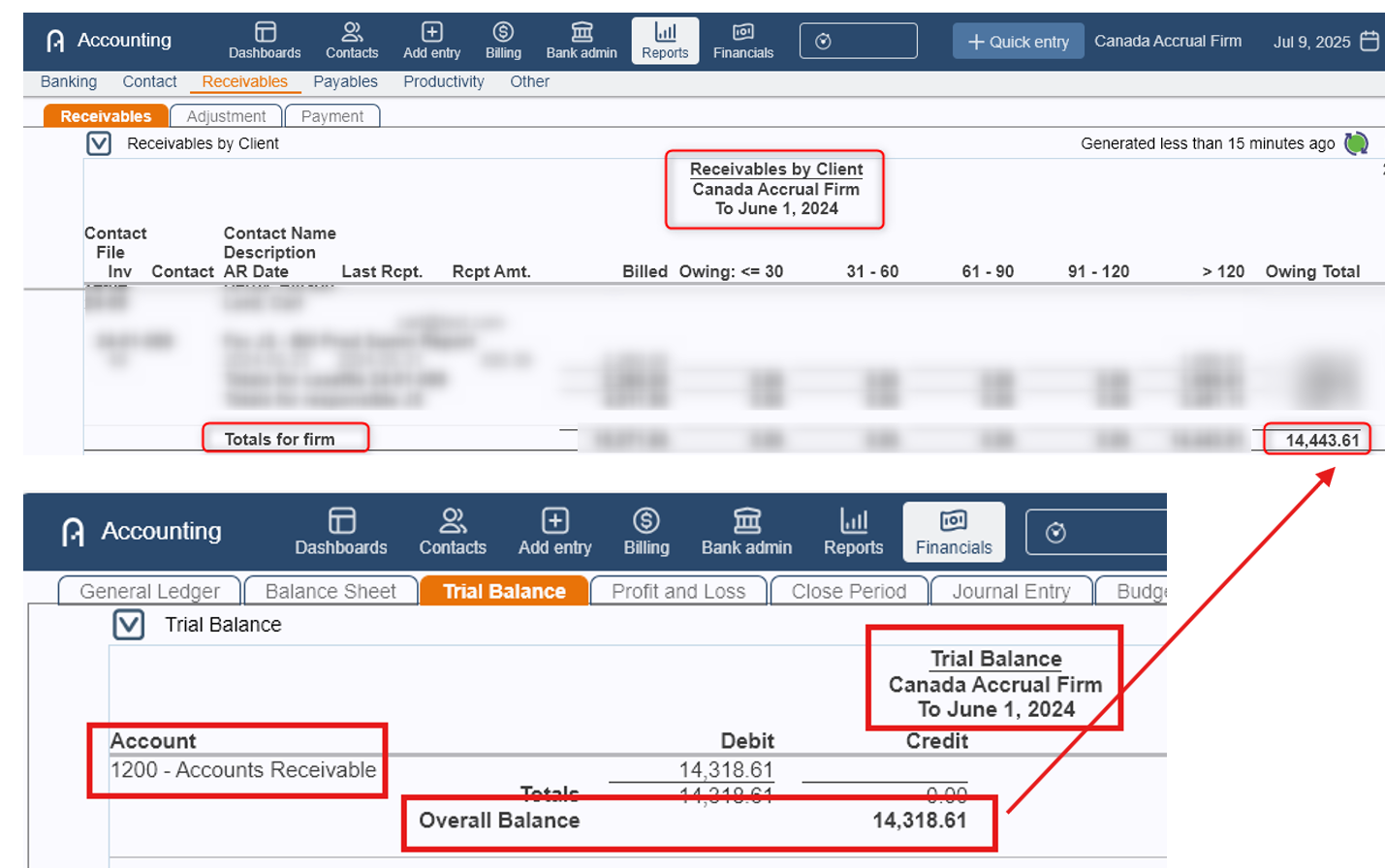
- Once you’ve identified the first date the imbalance occurs, please follow these steps to validate the balances:
- Run a detailed AR General Ledger report for the day prior to the imbalance and note the closing balance.
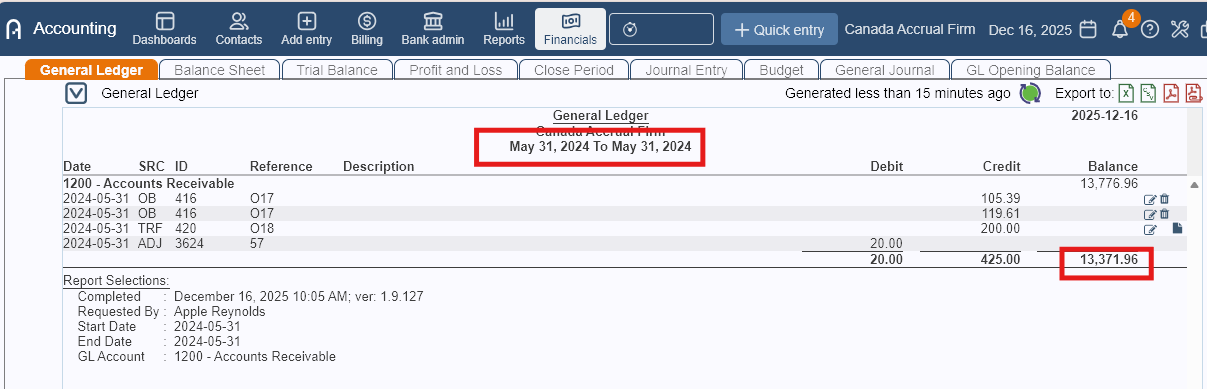
- Run the same detailed AR General Ledger report for the date the imbalance begins.
- Compare the prior day’s closing balance with the opening balance on the imbalance date.
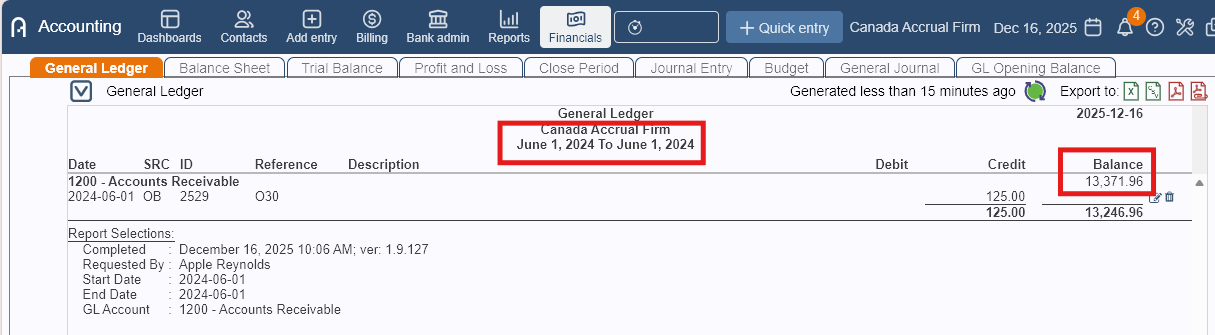
- Confirm that the two balances match. If they do not, please make note of the discrepancy and contact us for further assistance.
- Run a detailed AR General Ledger report for the day prior to the imbalance and note the closing balance.
- Find the entry or entries in question.
If the balances match, you need to find the entry/entries caused the imbalance. To do this, you'll need to compare the entries shown on your AR GL report with the Billings Journal, Adjustment Listing and Payment Allocation.- Run a detailed General Ledger report for the Receivables (AR) GL account for that specific date.
Go to Financials > General Ledger > basic (General Ledger)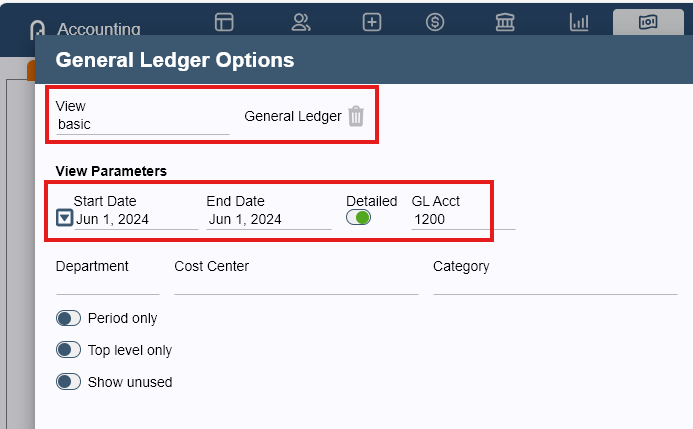
- Run Billings Journal for that specific date.
Set the Balances as of End Date
Toggle off Include fully paid invoices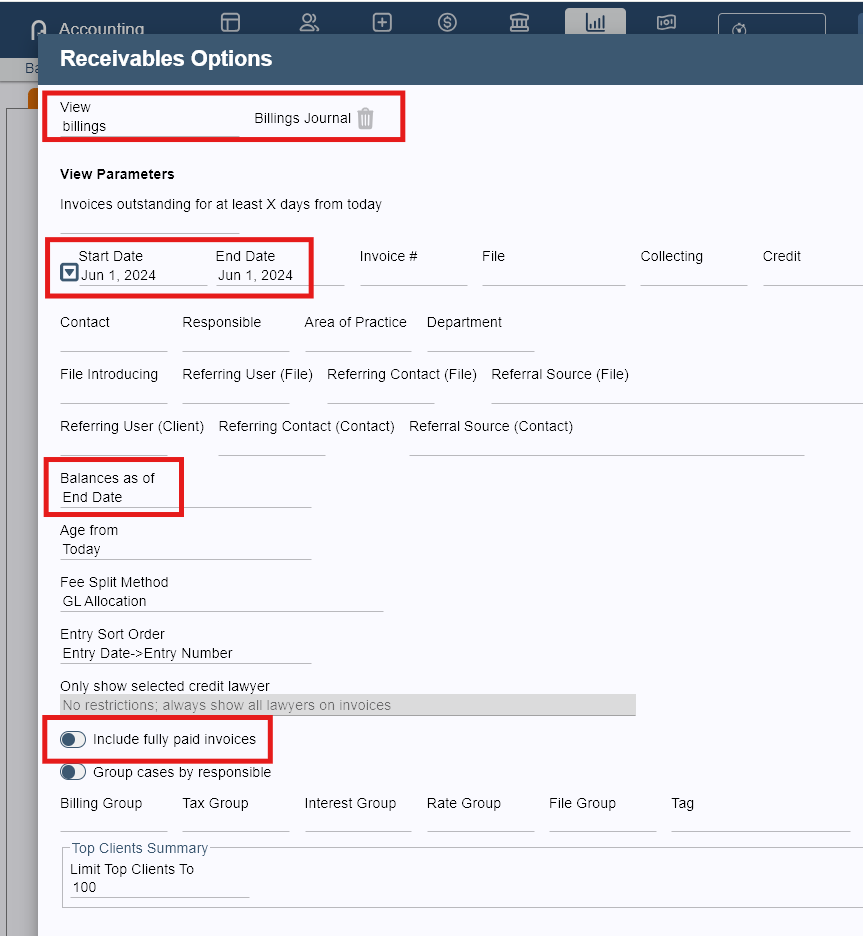
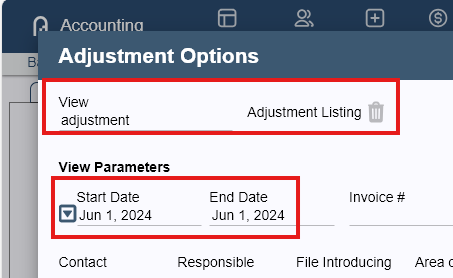
- Run Adjustment Listing for that specific date.
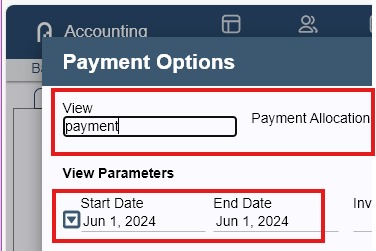
- Run Payment Allocation for that specific date.
Look for any entries that appear on your AR GL report but are missing from these other reports, or vice-versa. The numbers on all your subledger reports (Billings Journal, Adjustment Listing, Payment Allocation) should be reflected in your AR GL report as follows:- Bills in the Billings Journal will show as a Debit.
- Write Downs in the Adjustment Listing will show as a Credit.
- Write Ups in the Adjustment Listing will show as a Debit.
- Payments in the Payment Allocation will show as a Credit.
- Run a detailed General Ledger report for the Receivables (AR) GL account for that specific date.
Fixing the Entry that Caused the Imbalance
Once the entry or entries have been identified, please consult with your accountant should the entry need to be corrected or deleted, and if it's no longer an option, to create a journal entry to account for the difference.
If all steps and suggestions in this document have been followed and there are still issues that cannot be found/resolved after finding the exact days that the balances go off, please contact us.
Was this article helpful?
That’s Great!
Thank you for your feedback
Sorry! We couldn't be helpful
Thank you for your feedback
Feedback sent
We appreciate your effort and will try to fix the article